
WPN Setup
(ACR, True, Ya, PokerKing, BlackChip)
Follow this guide to learn how to best configure your WPN client for use with IntuitiveTables.
-
Configure Bet Buttons
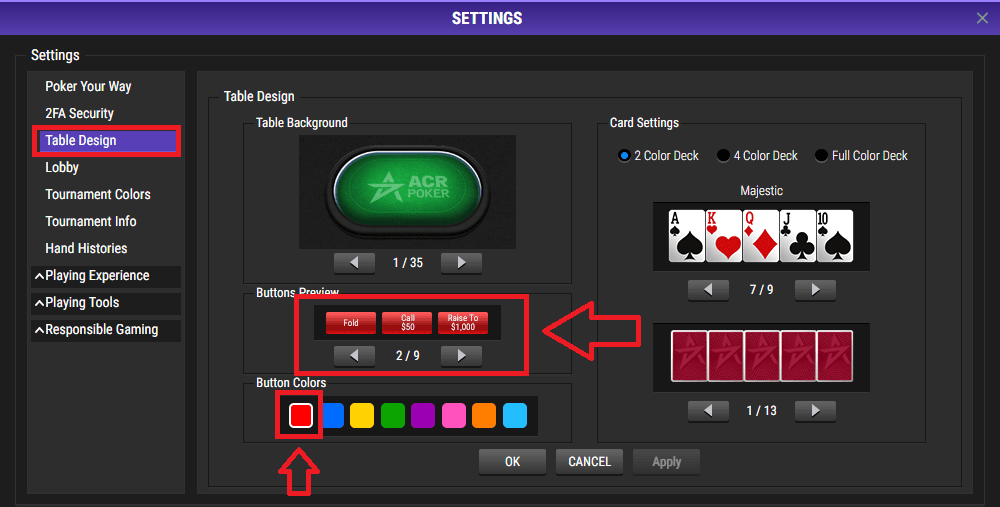
- Only red button colors are currently supported. The button design 2/9 must also be used.
- You may use any table background and cards.
Note: For the most reliable hotkeys, the table should be in a slot built by IntuitiveTables. Hotkeys may not function properly in full screen mode or if you manually size the table.
-
Disable Focus Stealing
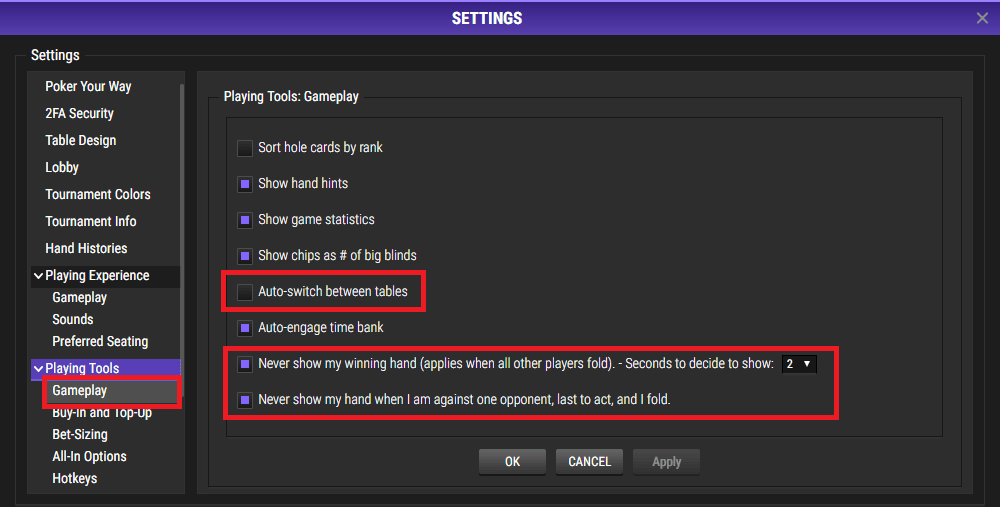
- Auto-Switch between tables should be turned off. Let IntuitiveTables can control when tables pop up and activate by enabling stacking or Urgent Table Cycling.
- Never show winning hands can help speed up play. Also, these buttons will be treated as urgent since they look the same as bet buttons.
-
Gameplay Settings
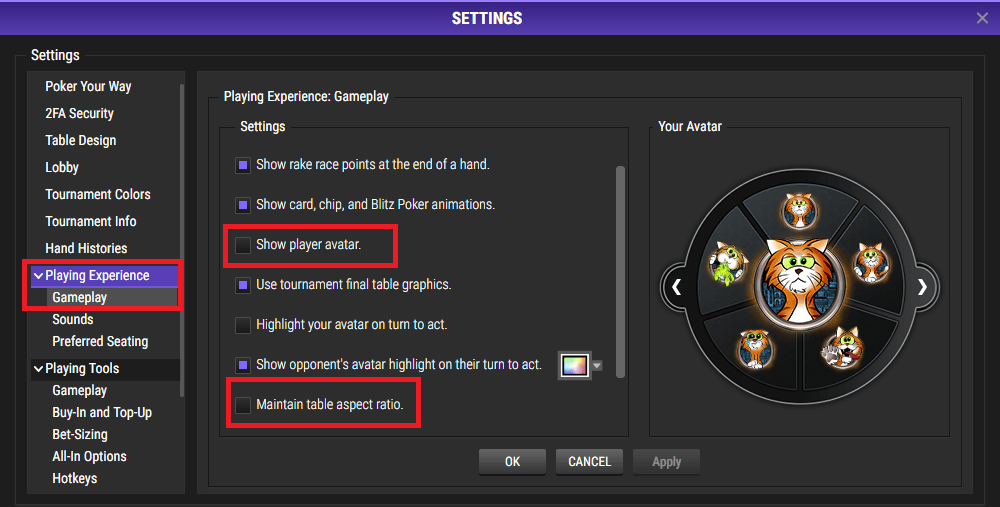
- Avatars with white images around where the cards are dealt may cause issues in certain setups. Either choose an avatar without white or disable avatars completely.
- To fix gaps between tables, turn off the setting "Maintain Table Aspect Ratio". You may need to drag and drop the table back into its slot to update the size.
-
Setup for All-In hotkey
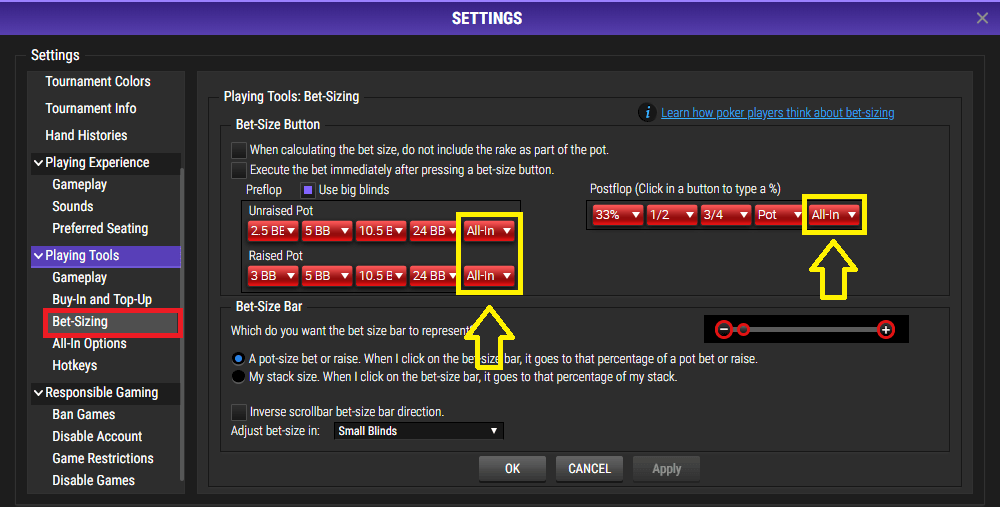
- For the All-In hotkey to work, make sure button 5 is set to All-In for pre-flop and post-flop.
Note: When playing Omaha, the value "999999999999" will be sent to the bet box instead. It is not necessary to configure Bet Button 5 to All-In if you only play Omaha.
-
Preferred Seat
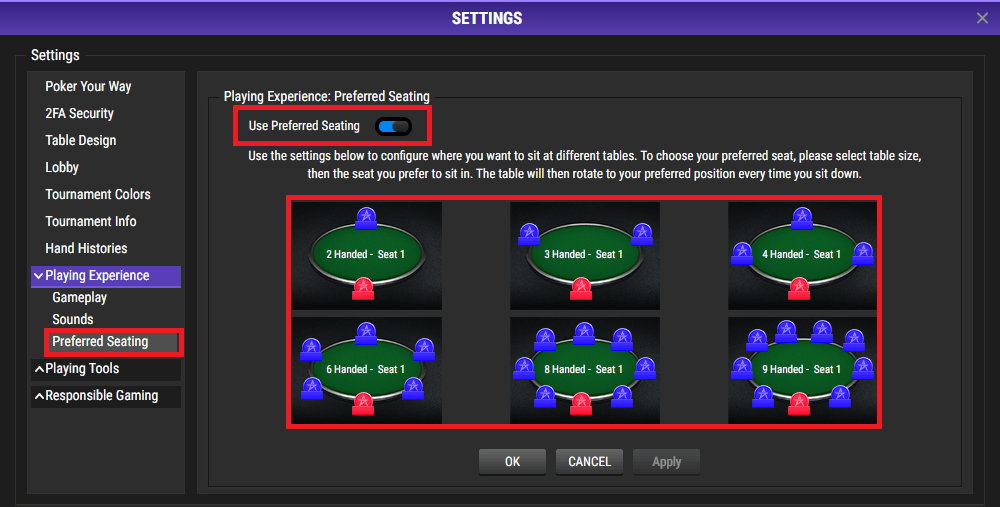
- You must use the most center-middle preferred seat when playing in Stack and Tile mode.
- This may also help speed up table switching in other setups like Multi-Stack or Urgent Table Cycling.
-
Bet Slider Button Hotkeys (optional)
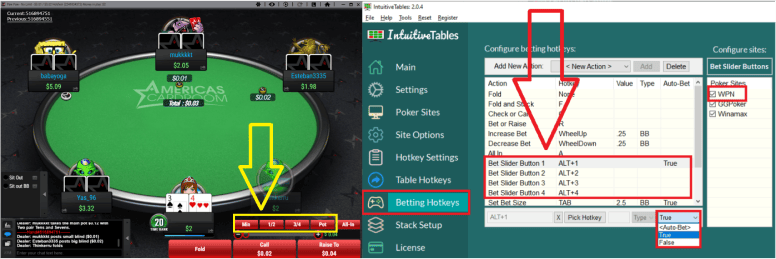
- Bet Slider Button hotkeys can be configured to click the small bet size buttons 1-4 (pictured above).
- Auto-Bet can be set to True to allow for immediate betting of these buttons.
-
Troubleshooting
My hotkeys (Fold/Call/Raise) aren't working
First double check Step #1 in this guide. We only support Red bet buttons and the default design.
Otherwise, it's possible you have HDR enabled on your monitor. This can make ACR tables abnormally bright and affect the detection of bet buttons. Try disabling HDR and see if this fixes the hotkeys.
The last possible way for hotkeys to fail is you have a mixed DPI setup. If you have any attached monitors above 100% scaling inside Windows, check out the multi-monitor recommendations in the DPI Scaling Guide.
Note: Still having an issue with WPN? Ask in Discord or contact support@intuitivetables.com.
Back to Site SetupReady to get started?
The free two week trial includes access to all available features. No credit card is required.