
PokerStars Setup
(PokerStars, Sisal.it)
Follow this guide to learn how to best configure your PokerStars client for use with IntuitiveTables.
-
Note: For FanDuel/PokerStars support you will need to follow our iPoker Setup guide and enable iPoker in the Poker Sites tab of IntuitiveTables.
Hotkey Setup
1. Configure the built in PokerStars Hotkeys exactly as shown in the photo below (in red). Once these are set, you can choose any supported hotkey inside IntuitiveTables.
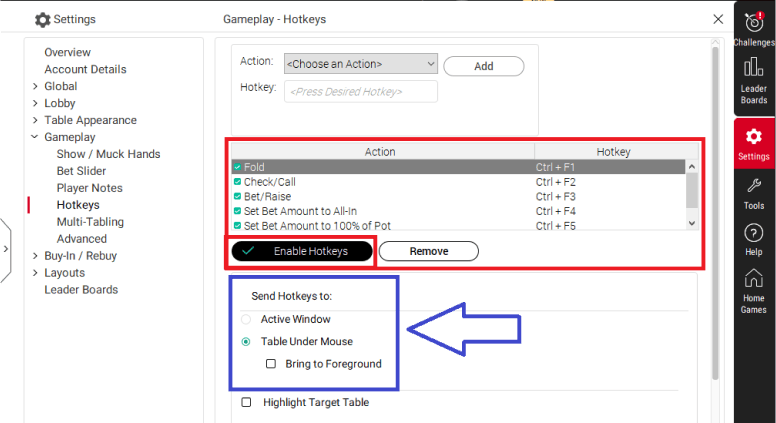
- Set Fold to Ctrl + F1
- Set Check/Call to Ctrl + F2
- Set Bet/Raise to Ctrl + F3
- Set Bet Amount to All-In to Ctrl + F4
- Set Bet Amount to 100% of Pot to Ctrl + F5
Note: Even if you aren't using hotkeys, Set Bet Amount to 100% pot to Ctrl + F5 is required for the custom bet buttons/bet box overlay to work properly post-flop.
- (In Blue) You may choose either Table Under Mouse or Active Window for "Send Hotkeys To". This should match what you set inside IntuitiveTables Hotkeys Settings tab for Hotkey Target.
- Make sure hotkeys are enabled click Apply Changes. Then click OK. Confirm the hotkeys are set by returning back to the hotkeys tab.
- You may need to run PokerStars as Administrator if you can't properly configure the hotkeys above.
Note: Do not set any hotkeys inside PokerStars to CapsLock. This may trigger when other hotkeys are being used on the table. However you can set a hotkey inside IntuitiveTables to CapsLock.
Troubleshooting
When using Hand2Note v4 bet sizings aren't working postflop
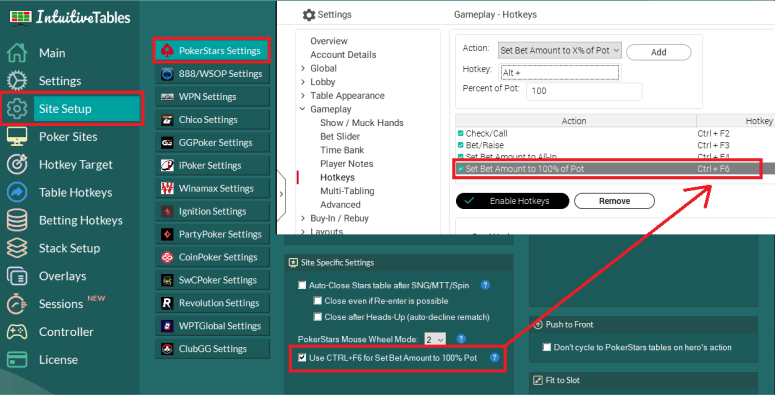
Hand2Note Beta 4 prevents the Ctrl+F5 configuration from working properly. To address this, use Ctrl+F6 for Set Bet Amount to 100% of Pot and enable "Use CTRL+F6 for Set Bet Amount to 100% Pot" option inside PokerStars Site Setup. If you are not using H2N v4 you can ignore this step.
-
Theme Selection
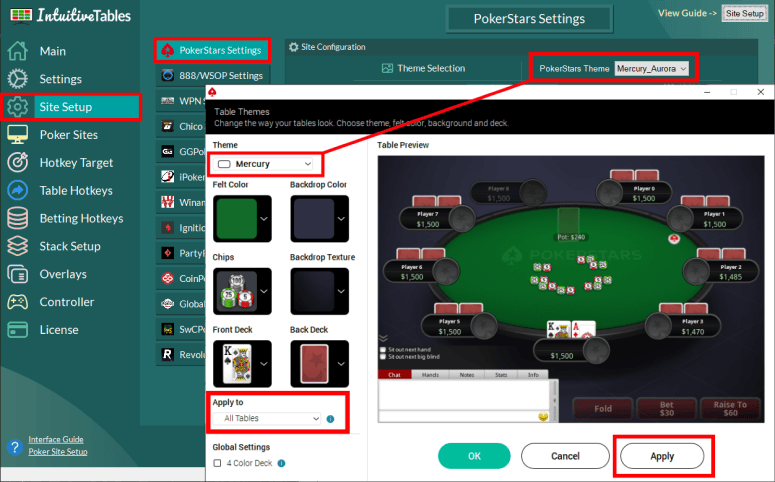
- Your selected theme must match inside PokerStars and IntuitiveTables.
- Apply the theme to all tables, otherwise some tables may load in a different theme.
- Inside Settings -> Table Appearance -> Table Display make sure Color-Coded Actions is disabled.

-
Disable Focus Stealing
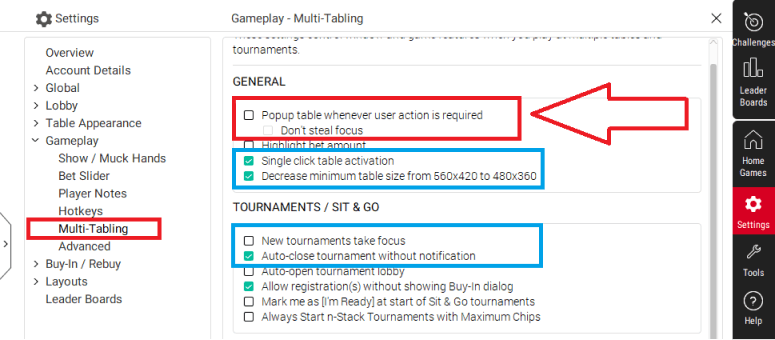
- (In red) Disable focus stealing here. Tables popping up can be handled by IntuitiveTables.
- (In blue) These are some suggested settings to help with Multi-Tabling.
-
Advanced Overlays (Optional)
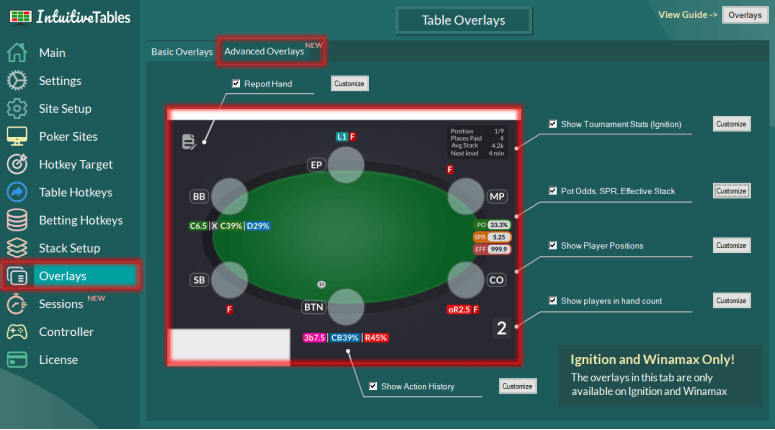
- Action History - See the history of actions, sizings, and player timings used throughout the hand with the Action History overlay HUD for PokerStars.
- Utilities Overlay - View your Pot Odds, Stack to Pot Ratio, and Effective Stack overlays for PokerStars.
- Facing Bet Overlay - View your Minimum Defense Frequency (MDF) and Outs Needed overlays when facing a bet.
- Next Street Overlay - Preview the Pot Size, Stack-to-Pot Ratio, and Effective Stack if your bet was to be placed using the Next Street Overlay.
- Bluff Equity Overlay - The Bluff Equity and Opponent pot odds overlay can give you an idea of how often your bluff needs to succeed before you place a bet.
- Player Positions - See the position of each seat on the table. All position texts can be modified and color coded in the "Customize" area.
Note: For seat-based overlays such as Action History, Positions, and Stack Sizes you will need to be in the bottom center seat (see next step below).
-
Preferred Seat
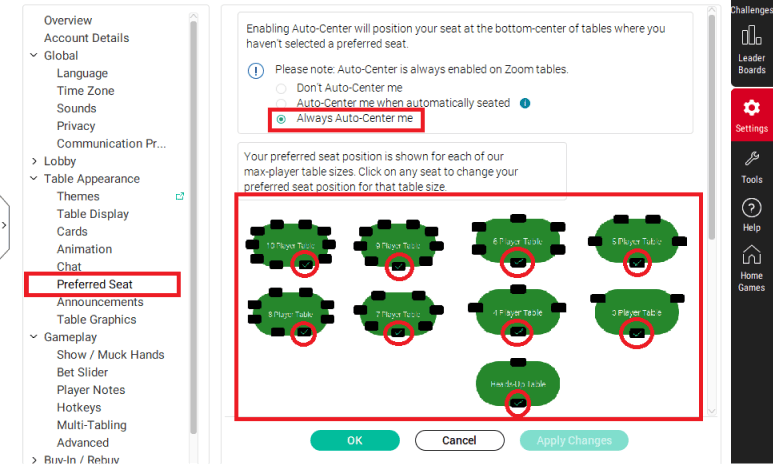
- Preferred seating must be enabled. You may have PokerStars auto-center you or choose manually the most bottom-middle seat at each layout.
-
Match Chips Converted State
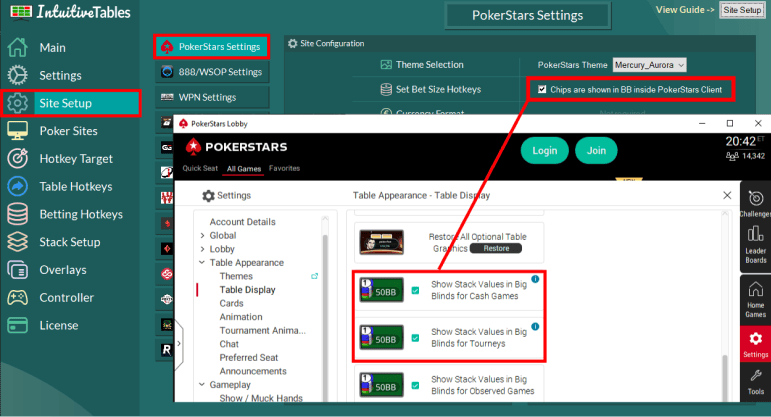
- IntuitiveTables cannot detect if you are converted to BB inside the PokerStars client. Use this option above if you have converted your chips to BB.
-
Bet Slider Button Hotkeys (optional)
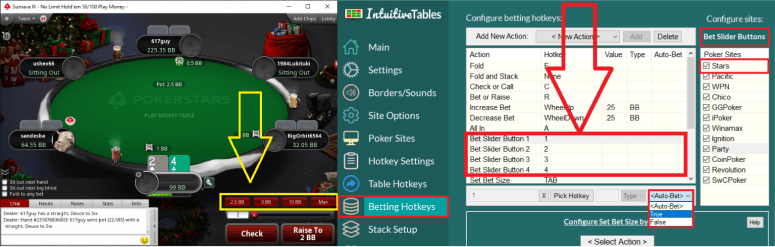
- Bet Slider Button hotkeys can be configured to click the small bet size buttons (pictured above).
- Auto-Bet can be set to True to allow for immediate betting of these buttons.
Note: Bet Button 4 does not have to be configured to Max for this site therefore you can use all 4 bet buttons for custom sizes and All-In will not be affected.
-
Muck Winning Hands
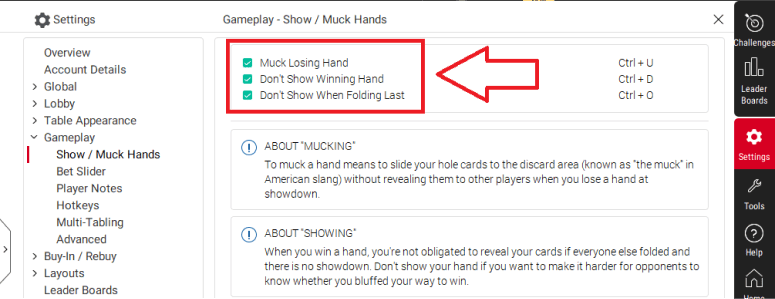
- If you leave the option to show hands, it may get grabbed as an urgent table and be moved or activated incorrectly. To fix this, follow these settings.
-
Troubleshooting
The advanced overlays stopped working after a PokerStars update.
If your poker client has updated you may need to update IntuitiveTables. First check to see if the newest version of IntuitiveTables works on the new client update, and if not please contact support.
Tables don't seem to pop to front or show bet buttons overlay
First double check step #2 (Theme Selection) and make sure Color-Coded Actions is disabled.
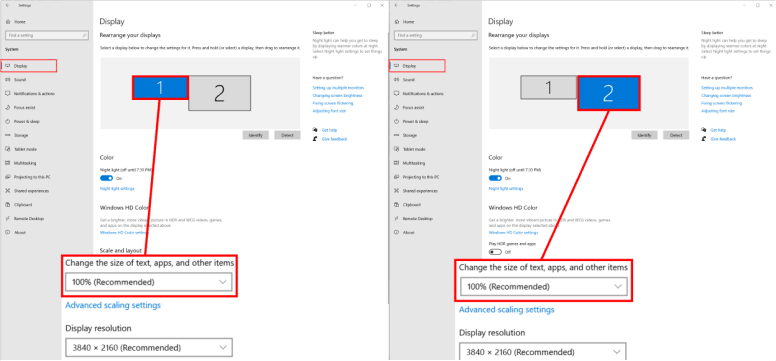
If you followed all the steps but the bet buttons/bet box still aren't appearing it could be a Windows Scale and Layout (high DPI) issue. Go to your display settings inside Windows and see if any of your monitors are on a Scale and Layout value other than 100%. If so, please view the DPI Scaling Guide.
Hotkeys don't work with two Stars different clients open simultaneously
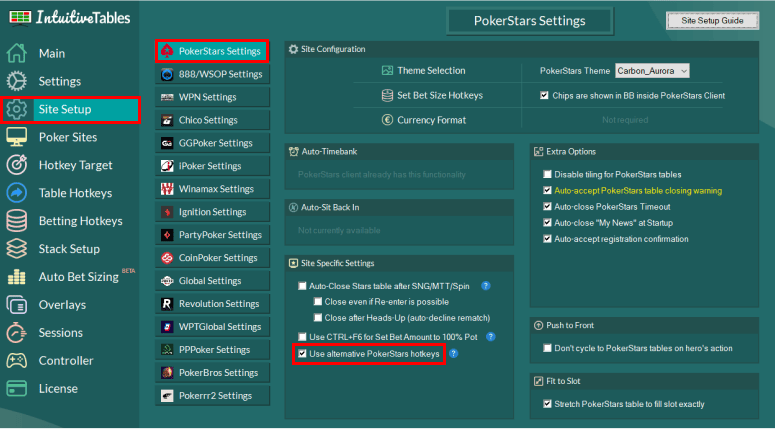
To use IntuitiveTables hotkeys on two different Stars clients at once, enable the option "Use alternative PokerStars Hotkeys" in the Site Setup tab for PokerStars inside IntuitiveTables.
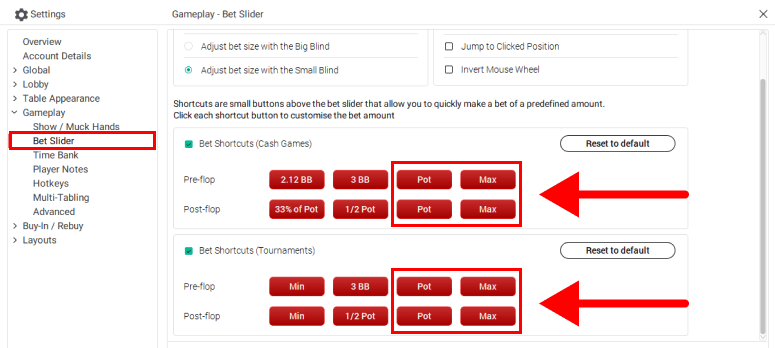
You will need to configure Bet Button 3 inside PokerStars to "Pot" for Set Bet Size hotkeys and the Custom Bet Buttons overlay to work, and Bet Button 4 to "Max" for the All-In hotkey to work. Make sure to do this for both PokerStars clients.
Note: With this option enabled, you can remove the hotkeys configured in Step #1, or disable hotkeys inside PokerStars by unchecking the "Enable Hotkeys" option (see image in Step #1).
Does IntuitiveTables work with the new FanDuel/PokerStars client?
Yes! For FanDuel/PokerStars IntuitiveTables support you will need to enable iPoker in the Poker Sites tab and then follow our iPoker Setup guide.
Note: Still having an issue with PokerStars? Ask in Discord or contact support@intuitivetables.com.
Back to Site SetupReady to get started?
The free two week trial includes access to all available features. No credit card is required.