
Weplay Setup
Follow this guide to learn how to best configure your Weplay client for use with IntuitiveTables.
-
Import Custom Site
Weplay is a community-maintained custom site within IntuitiveTables. To use it, download and unzip the latest version of Weplay from Community Maintained Custom Sites.
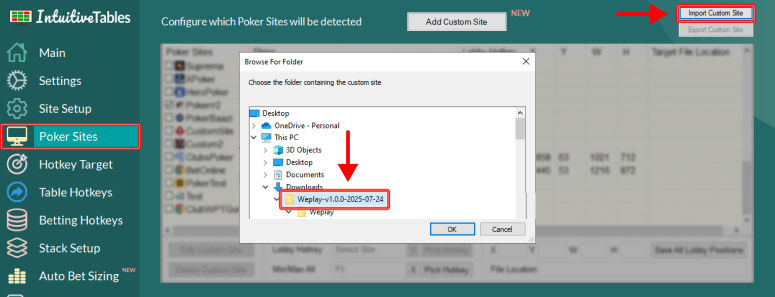
Once downloaded and unzipped, navigate to the Poker Sites tab and click "Import Custom Site" and select the extracted Weplay folder.
Note: After importing Weplay you will need to close and reopen IntuitiveTables.
-
Enable Hotkeys
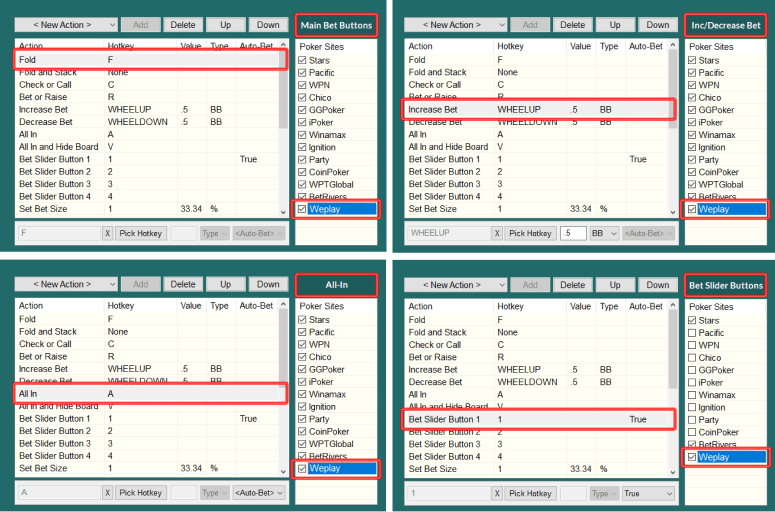
- After Weplay site is added and IntuitiveTables is reopened, you can enable Weplay in the Betting Hotkeys tab for each hotkey group you plan to use.
Note: For the most reliable hotkeys, we recommend keeping your table in a slot built by IntuitiveTables.
-
Disable Focus Stealing
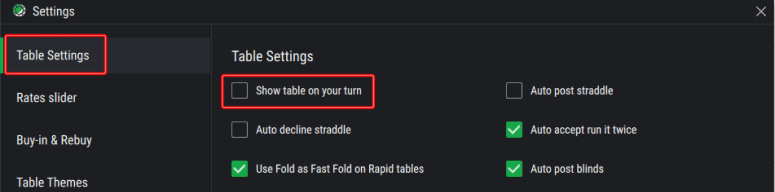
- Disable focus stealing by turning off Show table on your turn.
-
Configure Bet Buttons
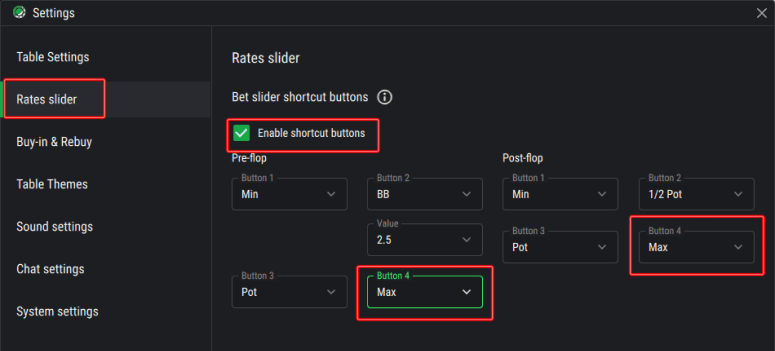
- Inside Weplay, configure bet button 4 to Max (or All-in) for both preflop and postflop. This is used for the All-In hotkey.
-
Preferred Seat
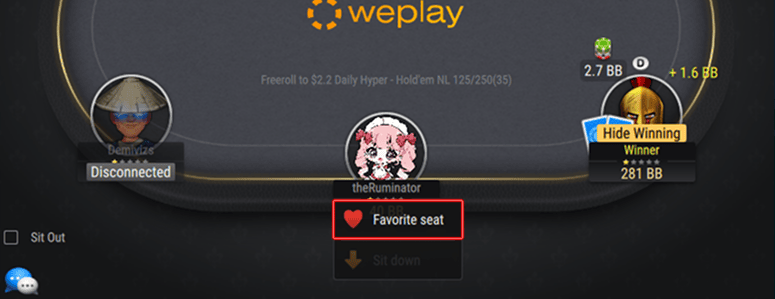
- For proper hole card detection the bottom middle seat must be used.
Note: Still having an issue with Weplay? Ask in Discord or contact support@intuitivetables.com.
Back to Site SetupReady to get started?
The free two week trial includes access to all available features. No credit card is required.