Site Setup

Revolution Setup
(Intertops, Everygame, Juicy Stakes)
Follow this guide to learn how to best configure your Revolution client for use with IntuitiveTables.
-
Keep Bet Area Visible
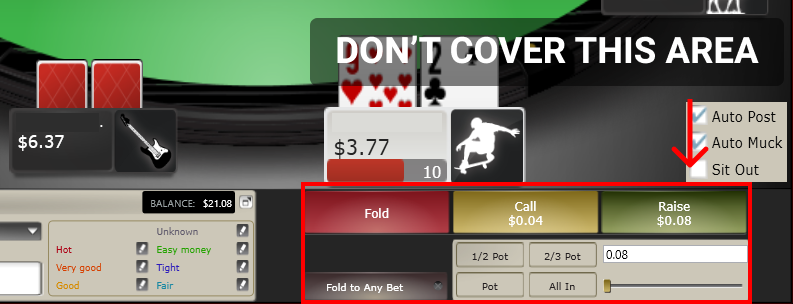
- Make sure to not cover the bet box or client bet buttons with your HUD, or any overlays like bet buttons or bet box.
- Note: If you cover this area with one of our overlays or an outside HUD (like PT4 or HEM), set bet Size hotkeys, custom bet buttons or bet box overlays may be unable to set the bet properly.
-
Disable Focus Stealing
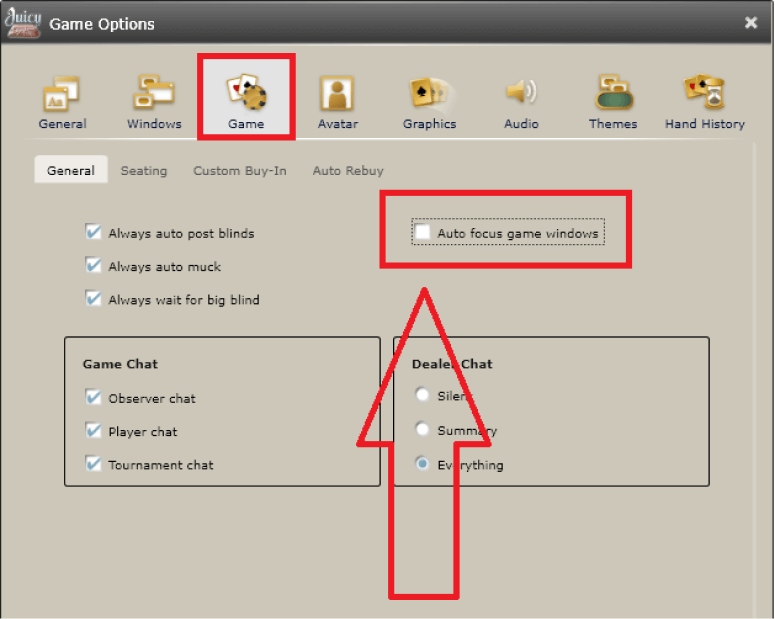
- To avoid focus stealing, disable auto-focus game windows.
-
Preferred Seat
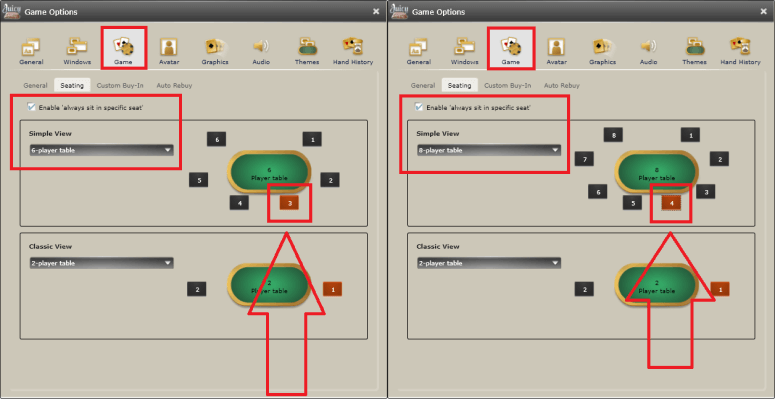
- For 6 and 8 max tables set the preferred seat as seen above (Seat 3 for 6-max and Seat 4 for 8-max).
Note: This is mostly for when using Stack & Tile for end of hand detection and faster table switching when clicking with the mouse.
-
Disable Mouse Wheel (optional)
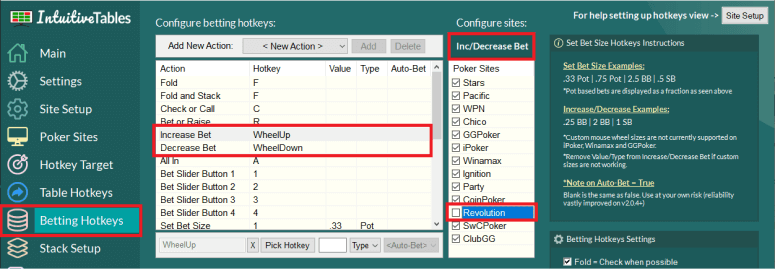
- Unless you use the game controller or want custom scroll sizings (like .25 BB) then we suggest disabling our mouse wheel for Revolution.
Note: Our mouse wheel may feel laggy at times on Revolution so we suggest using the Revolution scroll instead if it is working properly for you.
-
Bet Slider Button Hotkeys (optional)
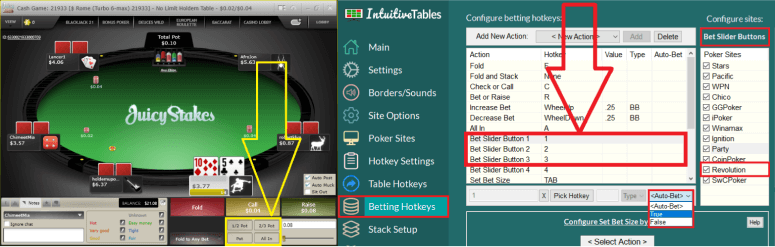
- Bet Slider Button hotkeys can be configured to click the small bet size buttons (pictured above).
- Auto-Bet can be set to True to allow for immediate betting of these buttons.
Note: Still having an issue with Revolution? Ask in Discord or contact support@intuitivetables.com.
Back to Site SetupReady to get started?
The free two week trial includes access to all available features. No credit card is required.