
Chico Setup
(BetOnline, TigerGaming, SportsBetting, PokerDom, PokerBet, Aconcagua, ESC Poker)
Follow this guide to learn how to best configure your Chico client for use with IntuitiveTables.
-
Button Position
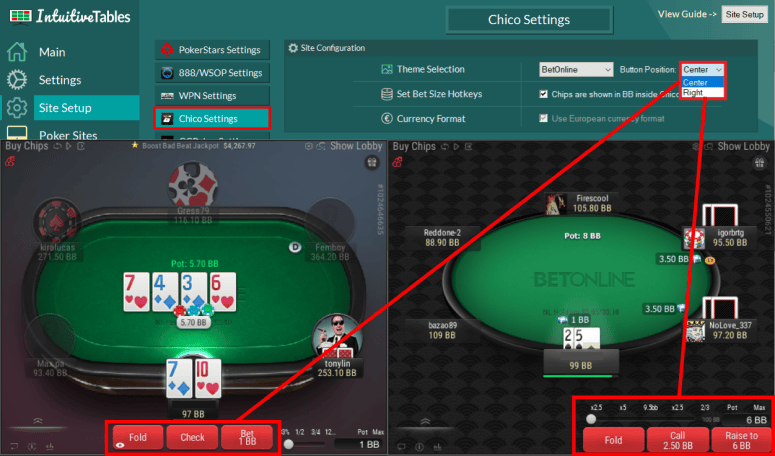
- If your bet buttons are positioned on the right choose "Right" for Button Position, otherwise choose "Center".
Note: Although we support the theme with the "Center" bet buttons, we highly recommend using the "Edge" theme inside Chico and make sure Button position is set to "Right" inside IntuitiveTables.
This will allow tables to fit better in the grid, and more features will work properly on PokerDom, PokerBet, Spartan, and Aconcagua. -
Table Settings
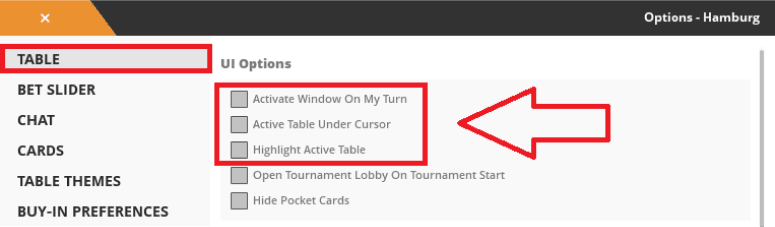
- To avoid stealing focus from other sites, Activate Window on My Turn must be checked off.
- Active Table Under Cursor can be handled inside IntuitiveTables Main Settings using "Activate table under mouse."
- Highlight Active Table can be done inside IntuitiveTables Settings tab using "Activate Table Border" which is more customizable.
-
Hotkey Setup
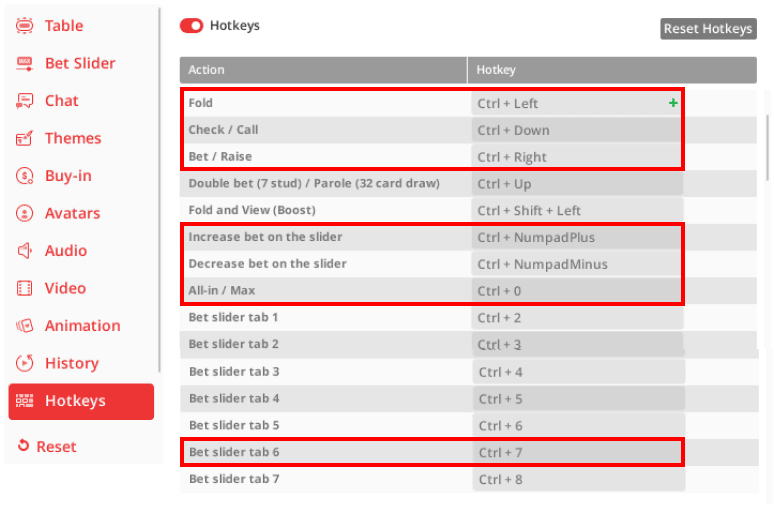
- 1. Hotkeys must be enabled and set to their defaults as seen in the image above.
- 2. Once hotkeys are enabled in Chico and set to their defaults, you can choose any hotkey inside IntuitiveTables.
Note: Do not set any hotkeys inside Chico to CapsLock. This may trigger when other hotkeys are being used on the table. However you can set a hotkey inside IntuitiveTables to CapsLock.
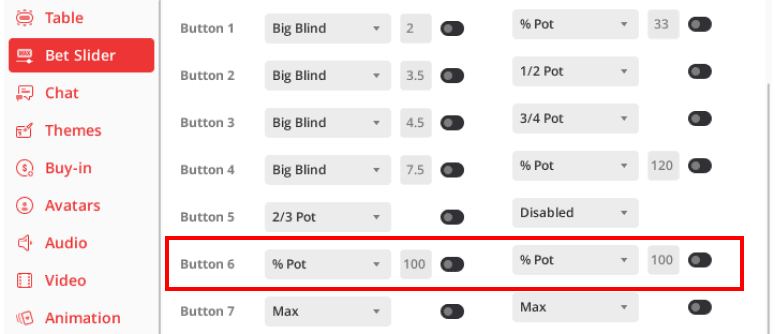
- 3. Make sure Button 6 is set to the default of 100% pot preflop and postflop. This is used for Set Bet Size hotkeys and the Bet Buttons/Bet Box overlays as a backup in certain situations.

- 4. Make sure to disable the "Open Chat" hotkey as this could get triggered during bet size hotkeys.
-
Match Chips Converted State
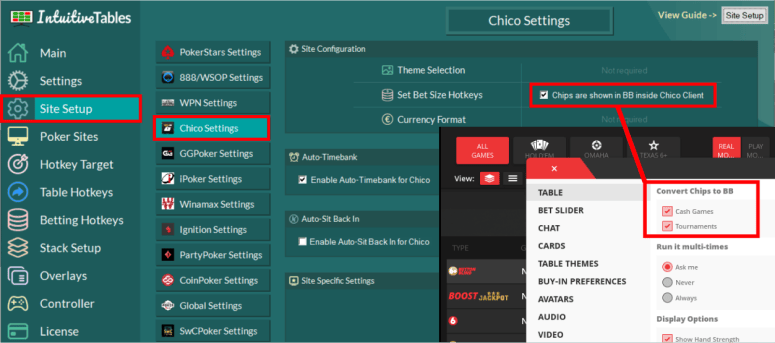
- If you converted your chips to BB inside your Chico skin, you must update this inside IntuitiveTables settings as well.
-
Video Settings
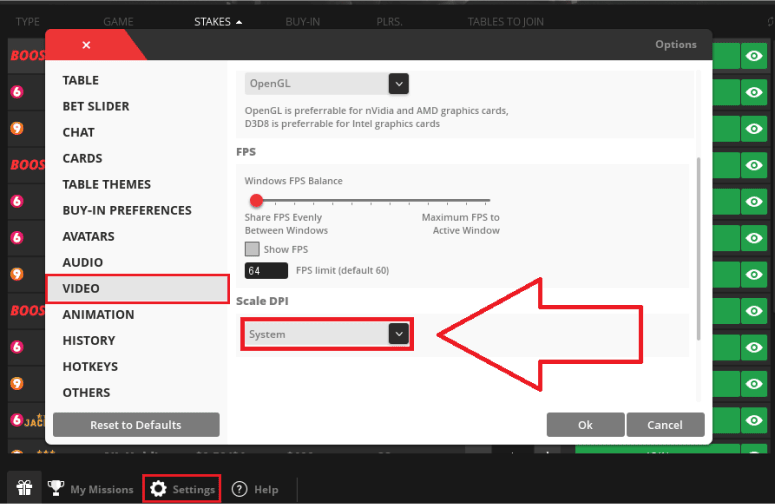
- Chico now allows you choose DPI settings inside the client. Make sure Scale DPI is set to System or certain hotkeys will not function properly.
-
Advanced Overlays (Optional)
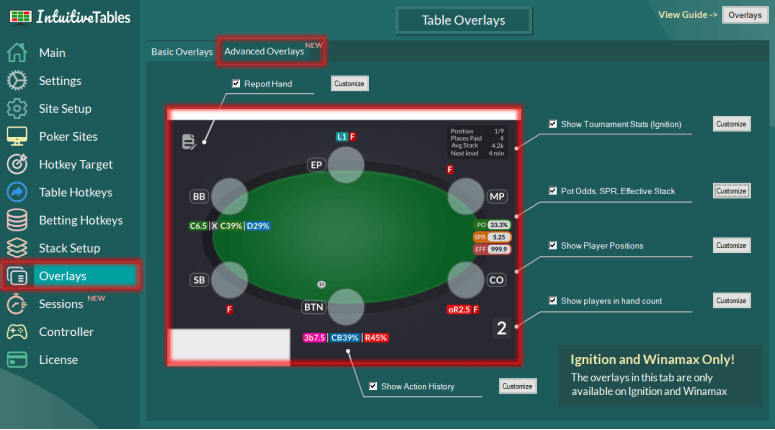
- Action History - See the history of actions and sizings each player used throughout the hand with the Action History overlay HUD for Chico. All action texts can be modified and color coded in the "Customize" area.
- Utilities Overlay - View your Pot Odds, Stack to Pot Ratio, and Effective Stack overlays for Chico.
- Facing Bet Overlay - View your Minimum Defense Frequency (MDF) and Outs Needed overlays when facing a bet.
- Next Street Overlay - Preview the Pot Size, Stack-to-Pot Ratio, and Effective Stack if your bet was to be placed using the Next Street Overlay.
- Bluff Equity Overlay - The Bluff Equity and Opponent pot odds overlay can give you an idea of how often your bluff needs to succeed before you place a bet.
- Player Positions - See the position of each seat on the table. All position texts can be modified and color coded in the "Customize" area.
-
Hide Windows Switcher (if possible)
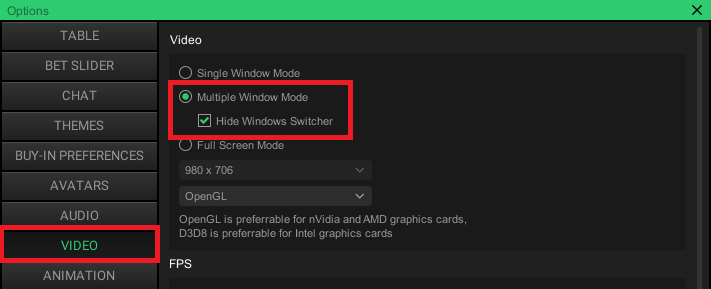
- On certain Chico skins such as PokerDom and PokerBet (and maybe others) you will need to enable the option "Hide Windows Switcher" if possible otherwise certain hotkeys may not function properly.
Note: If your Chico skin does not have this option you can ignore this step.
-
Troubleshooting
What Chico skins are supported for advanced overlays?
We currently support advanced overlays in the following Skins:
- BetOnline
- TigerGaming
- SportsBetting
- PokerDom
- PokerBet
- Aconcagua
- ESC Poker
The advanced overlays stopped working after a Chico update.
If your poker client has updated you will need to update IntuitiveTables. First check to see if the newest version of IntuitiveTables works on the new client update, and if not please contact support.
Note: Still having an issue with Chico? Ask in Discord or contact support@intuitivetables.com.
Back to Site SetupReady to get started?
The free two week trial includes access to all available features. No credit card is required.